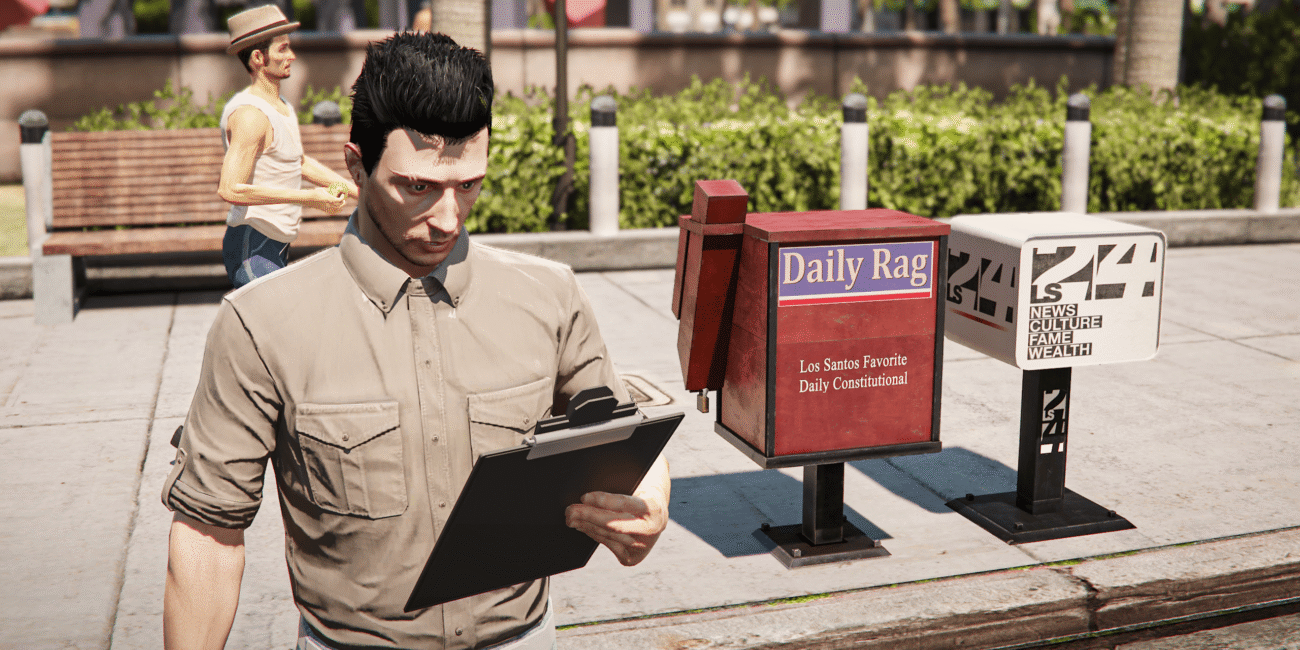
So, you’re trying to run GTA V on a machine that’s seen better days? Maybe you’re rocking an old office laptop with integrated graphics or an aging budget rig that starts screaming the moment you drive into downtown Los Santos. It’s frustrating when you just want to cruise through Vinewood but your screen looks like a slideshow. The good news is that Rockstar’s engine is actually surprisingly flexible. You don’t need a $3,000 liquid-cooled beast to enjoy the chaos of San Andreas; you just need to know which GTA 5 mods to install and which background files to swap out to stop your hardware from choking on unnecessary data.
In 2026, GTA V modding has evolved. We now have tools that can strip away the hidden “bloat” Rockstar added over a decade of updates, making the game playable even on hardware that technically shouldn’t be able to open it. This guide focuses on the practical steps to turn a stuttering mess into a high-option game! And if you’re also a beginner in the GTA Galactic, check our another guide about choosing the best FiveM mods for new players!
What is Hardware Bar
Before downloading GTA 5 mods, you need to know where your PC stands. Rockstar recently updated the game’s requirements for the “Enhanced” version, which caught many budget players off guard. If you’re on an older system, you’re likely running the “Legacy” version.
GTA V System Requirements (2026 Update)
| Component | Legacy Minimum (Potato) | Enhanced Recommended (Modern) |
| OS | Windows 10 (64-bit) | Windows 11 |
| CPU | Intel Core 2 Quad Q6600 | Intel Core i5-9600K / Ryzen 5 3600 |
| RAM | 4 GB | 16 GB |
| GPU | NVIDIA 9800 GT (1GB) | RTX 3060 / RX 6600 XT (8GB) |
| Storage | 105 GB HDD | 105 GB SSD (DirectStorage) |
Why Your PC is Struggling (And How to Fix It)
Most low-end PCs fail because of VRAM (Video RAM) limits or CPU spikes. When you drive fast, the game tries to load high-res textures and FiveM mods for every building and car at once. If your PC can’t keep up, you get “texture loss”—where the road literally disappears from under your tires.
The Foundation for Low-End Modding
- Custom Gameconfig: This is the most important file for stability. A “low-end optimized” gameconfig file changes how the game allocates memory, preventing crashes when the action gets intense.
- Heap Adjuster: This tool tells the game to use more of your system RAM to compensate for a weak graphics card.
- OpenIV: You’ll use this to create a “mods” folder so you can edit the game’s internal files without breaking the original installation.
Best Performance GTA 5 Mods
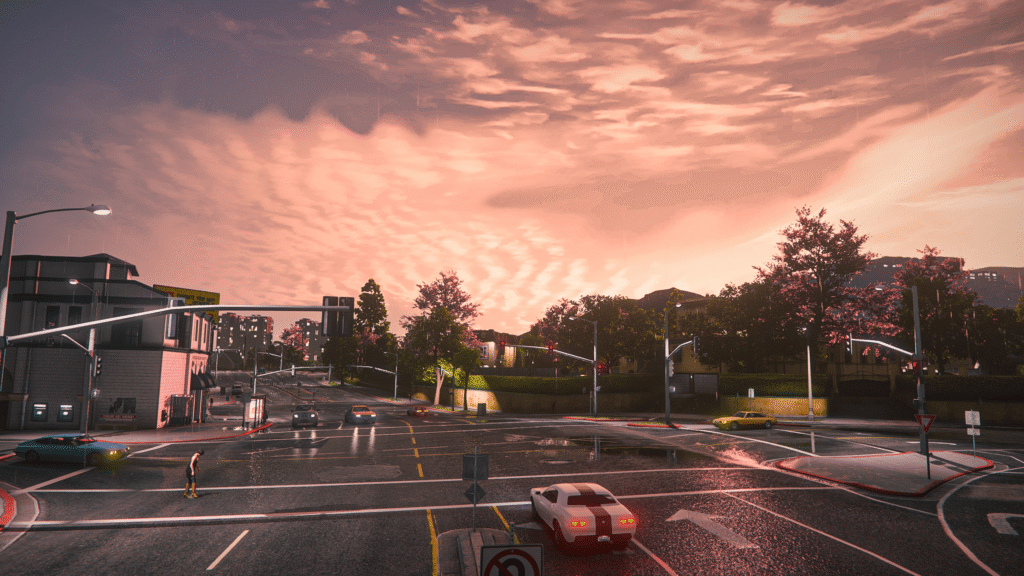
If you want to save time, these specific FiveM mods are built to give you the most frames with the least amount of effort.
1. FSR (FidelityFX Super Resolution) Mod
As seen in many modern optimization guides, the FSR Mod is a game-changer. It allows the game to render at a lower resolution (like 720p) and then uses AI to upscale it to look like 1080p.
- The Result: You get the performance boost of a lower resolution without the blurry “pixelated” mess.
- Pro Tip: If you have an NVIDIA card, use the DLSS/DLAA mods; for everything else, stick to FSR.
2. The “Ugly Mode” / Settings.xml Overhaul
Sometimes the in-game “Low” settings aren’t low enough. You can manually edit your settings.xml (found in Documents > Rockstar Games > GTA V) to turn off features the menu won’t let you touch.
- ShadowQuality value=”0″: Completely disables shadows, giving you an immediate 10–20 FPS jump.
- LodScale value=”0.000000″: Reduces the distance at which high-detail models load.
3. GTA V Re-Size (The Texture Compressor)
This GTA 5 mod replaces standard 2K textures with compressed versions. This is specifically for players with 2GB of VRAM or less. It keeps your VRAM from capping out, which is the main cause of the “disappearing road” glitch.
4. Groove Graphics (The FPS King)
Groove Graphics from FiveMods is arguably the most famous performance mod on the platform. Unlike other graphics FiveM mods that try to make the game look like a movie, Groove Graphics focuses on “cleaning” the visual data. It removes heavy volumetric fog and reduces the resolution of distant objects that you can’t see clearly anyway.
- Why it works: It uses a “three-pack” system (Vanilla, Moderate and Ultra-Low) so you can choose exactly how much visual quality you’re willing to trade for speed.
5. FiveM Redux (Optimized Lite)
While the original GTA 5 Redux is known for being a resource hog, the FiveM Redux Lite version found on FiveMods is stripped down. It keeps the improved color correction and sharper textures but removes the heavy scripts and 4K fire effects that usually cause low-end PCs to crash. It’s perfect for players who want a “modern” look without the 20 FPS penalty.
Advanced Optimization: FiveMods AI Tool
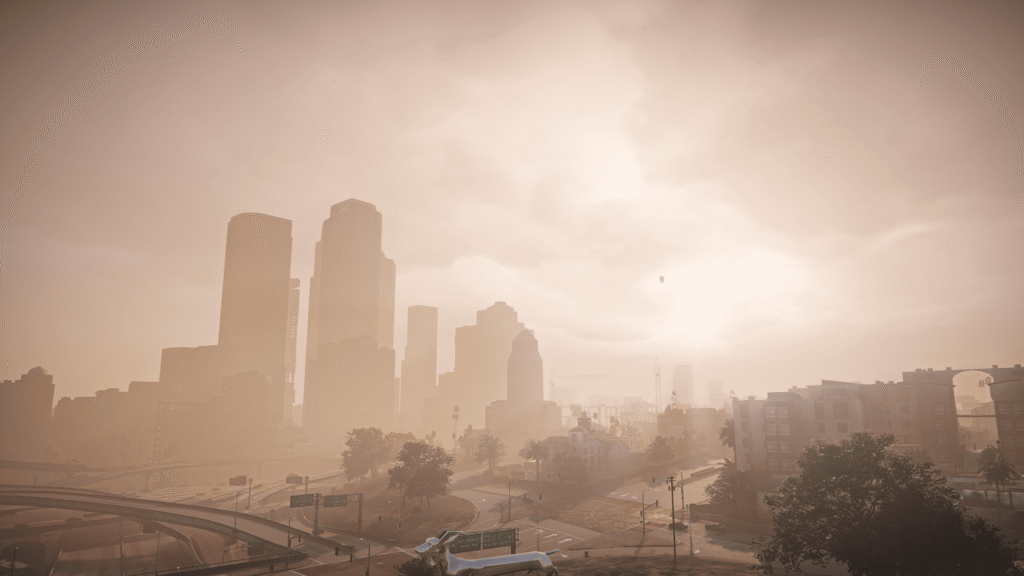
The manual tweaks mentioned in most YouTube guides are great, but they take time and one wrong click can break your game. Our FiveMods AI Optimization Tool automates this process by scanning your specific hardware and applying a custom profile.
| Tool Feature | Benefit for Low-End PCs |
| Memory Allocator | Forces the game to use more System RAM when VRAM is full. |
| Shadow Stripper | Removes invisible shadow layers that eat GPU cycles. |
| Auto-FSR Linker | Automatically installs the correct upscaling files for your GPU type. |
| Background Freezer | Puts non-essential Windows processes to sleep while GTA is running. |
The “Ugly Mode” / Settings.xml Overhaul
Sometimes the in-game “Low” settings aren’t low enough. You can manually edit your settings.xml (found in Documents > Rockstar Games > GTA V) to turn off features the menu won’t let you touch. Look for these specific lines and change their values:
- ShadowQuality value=”0″: Completely disables shadows, giving you an immediate 15–20 FPS jump.
- LodScale value=”0.000000″: Reduces the distance at which high-detail models load.
- ReflectionQuality value=”0″: Turns off real-time reflections on cars and water.
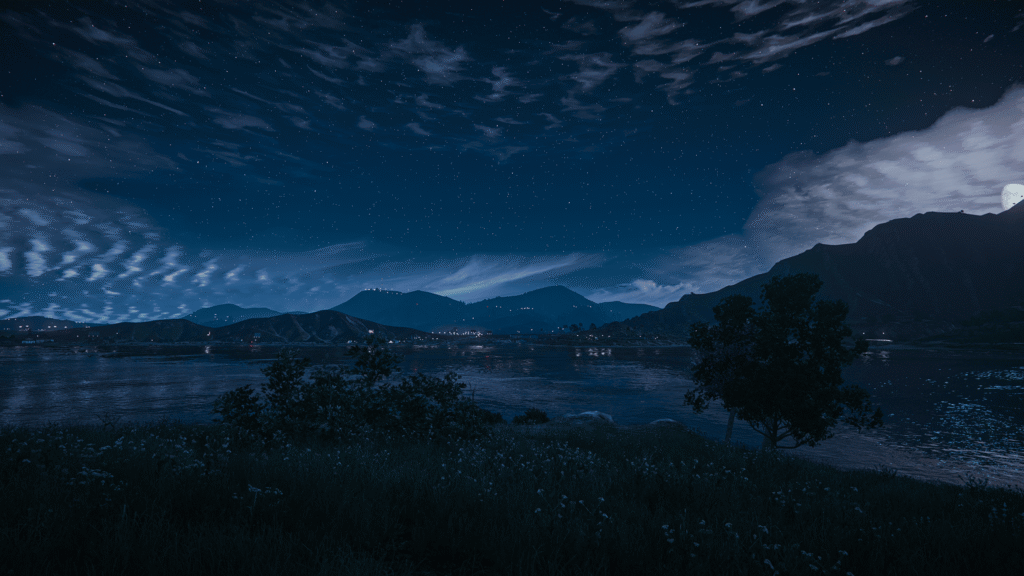
Comparison: Vanilla vs. Performance Modded
Here is what you can realistically expect after cleaning up your game files and using the AI Optimization tool:
| Technical Stat | Vanilla “Low” Settings | Optimized with Performance GTA 5 Mods |
| VRAM Usage | 1.9 GB – 2.2 GB | 1.0 GB – 1.2 GB |
| FPS in Downtown | 18–24 FPS | 45–60 FPS |
| Texture Pop-in | High (Roads disappear) | Low / None |
| CPU Temperature | High (Fans spinning loud) | Stable / Moderate |
Better Settings for Low-End Players
Even with GTA 5 mods, you should tweak these three specific in-game settings to stop the stuttering:
- Extended Texture Budget: Don’t leave this at zero. Move it to about 25%. This prevents the “disappearing world” glitch by giving the game more breathing room in your system RAM.
- Population Density: Slide this to the left. Fewer cars and NPCs on the street means less work for your CPU.
- Post-FX: Set this to “Normal.” Anything higher adds motion blur and bloom effects that suck up resources for very little visual gain.
Common Mistakes That Kill Performance
- Using Reshade: Many players try to “fix” the look of the game with Reshade. On a low-end PC, Reshade acts like a heavy blanket over your GPU. Avoid it if you’re struggling for frames.
- Ignoring the “Mods” Folder: If you install these files directly into your main game folder, you’ll have a nightmare trying to fix it if things go wrong. Always use the OpenIV “mods” folder system.
- Running GTA Online with GTA 5 Mods: This will get you banned. If you want to play with friends on a low-end PC, use FiveM. It’s much better optimized for custom assets and won’t touch your official Rockstar account.
Want to see if your PC can handle a specific setup? Would you like me to walk you through how to use the FiveMods AI tool to auto-configure your game for the best possible FPS right now?

Upgrade your GTA V in a few clicks
Revamp your favourite game in just a few clicks